Installing plugins
Add a plugin to a self-hosted build today, plus the hosted marketplace flow.
Updated
There are two ways a plugin reaches a running Railbase:
- Marketplace (recommended). Browse, buy or trial, and install plugins from railbase.app without leaving your admin — the marketplace is built in and always available. This is the path most operators use.
- Self-hosted build. If you compile your own binary, you can register a plugin's Go module at build time instead — handy for development or a fully self-contained build you control.
Most people want the marketplace — skip to The marketplace. The build-time method is documented first, for self-compilers.
Add a plugin to a self-hosted build
A first-party plugin is a Go module (e.g. github.com/railbase/railbase-cms) that
exposes a Register(app) entry point. Installing it is three steps.
1. Add the dependency. Pre-release, pin it to your local checkout in go.mod
(same reason railbase/vault are pinned — see Project setup):
replace github.com/railbase/railbase-cms => /path/to/plugins/railbase-cms
2. Register it in your cmd/<app>/main.go, inside the ExecuteWith callback:
import cms "github.com/railbase/railbase-cms"

cli.ExecuteWith(func(app *railbase.App) {
    if err := cms.Register(app); err != nil { // installs the plugin
        panic(err)
    }
})
Register registers the plugin's collections with the schema registry (so the
core auto-generates CRUD at /api/collections/<prefix>_*) and mounts its custom
verbs (for CMS, under /api/cms/*).
3. Migrate. The plugin's collections are now part of your schema, so generate and apply a migration, then run:
go build ./cmd/myapp
./myapp migrate diff install_cms
./myapp migrate up
./myapp serve
The plugin's tables and routes are live. For CMS, /api/collections/cms_posts,
/api/collections/cms_categories, … respond immediately, and /api/cms/_health
returns {"plugin":"cms","status":"ok"}. See the CMS plugin.
Frontend: the plugin's user-facing pages
Register(app) wires the backend (collections + verbs). A plugin's
user-facing screens are not served automatically — they ship as source TSX
that you mount into your app's host SPA. The basic template has no SPA (/
returns 404), so you need a web/ frontend (the fullstack template, or a
minimal Vite + Preact host).
These steps are verified end-to-end with the CMS plugin:
1. UI kit. The plugin's pages import the shadcn-on-Preact kit. Materialise the
components they use into your web/:
railbase ui init --out web              # styles.css + cn.ts + _primitives/
railbase ui add button badge --out web  # the components CMS imports
2. Copy the plugin's frontend tree (preserving structure, so its relative imports resolve):
cp -R plugins/railbase-cms/frontend/{api,types,components,pages} web/src/cms/
3. Wire routes in web/src/app.tsx (Preact + wouter-preact). The public
pages need no auth; private ones go behind your auth gate. The full route map is
in the plugin's frontend/README.md:
import { BlogIndexPage } from "./cms/pages/public/blog_index";
import { PostPage } from "./cms/pages/public/post";

<Route path="/blog">{() => <BlogIndexPage />}</Route>
<Route path="/blog/:slug">{(p) => <PostPage params={p} />}</Route>
// … /c/:slug (CategoryPage), /search/:q (SearchPage), and the private pages
4. Build + embed. Build the SPA and embed it so the one binary serves UI + API:
cd web && bun install && bun run build      # → web/dist
cp -R web/dist/. webembed/web-dist/         # (or run `railbase build`)
go build ./cmd/myapp && ./myapp serve
The blog is now live at /blog, listing your cms_posts and linking to each
article at /blog/:slug.
Note
frontend/api/cms.ts calls relative /api/... paths with
credentials: "include", so the pages must be same-origin with the
backend — i.e. embedded (above) or, in development, run railbase dev --web ./web
so Vite proxies /api to the backend.
The marketplace
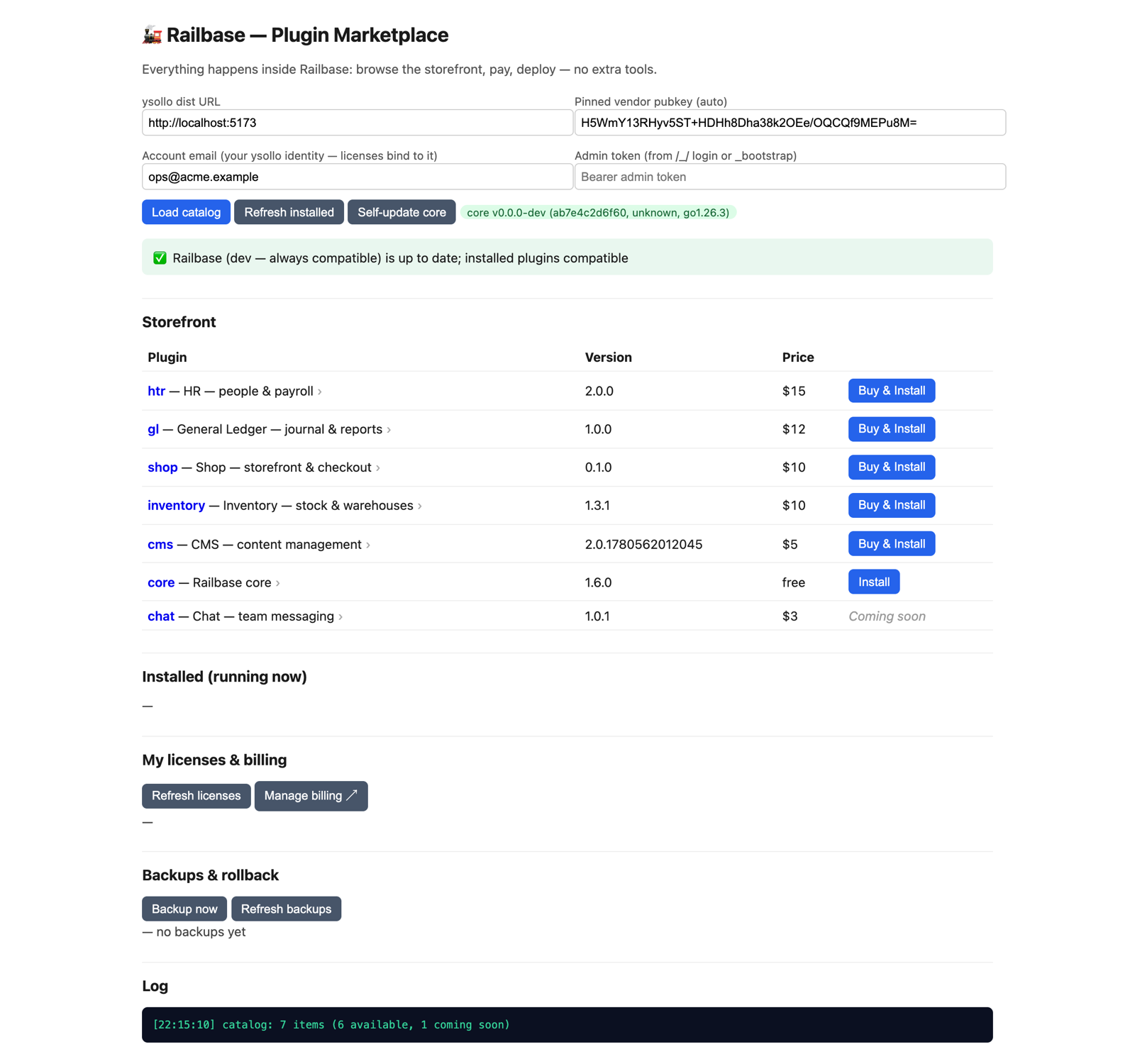
The marketplace is built in and always on. Open Marketplace in your Railbase admin and you're browsing the live catalogue from railbase.app — every plugin, its price, and its per-seat terms. There's nothing to switch on and no address to configure; your binary already knows where to look, and it only ever pulls from railbase.app.
From the catalogue, getting a plugin is one continuous flow — you never leave Railbase:
- Pick a plugin and review the price for your seat count.
- Buy, or try it free.
- Buy — payment is embedded in the page: you enter your card in a secure form served by railbase.app. Your server is never a card processor and stores no card data.
- Try free — where a plugin offers a trial, this starts a time-boxed trial (one per plugin) that installs right away and needs no card. Buy any time before it ends to keep it running.
- Install. On a successful purchase or trial, your instance pulls the plugin, verifies it's authentic and unmodified before it runs, and brings it online.
Note
You buy with an account email, and your licenses are tied to it. Set it once in the Marketplace; use the same email to see My licenses & billing and on your account here.
Update
When a newer version is available the Marketplace shows it. Updating stops the running version and installs the new one — reusing your existing license, so there's no second checkout. Core and plugin updates and the compatibility rules are covered in Updating. (For a build-time install, you update by bumping the dependency and rebuilding.)
Stop, uninstall, purge
For marketplace-managed plugins, Railbase's plugin manager exposes three distinct "turn it off" actions — they are not the same:
| Action | What it does | Your data |
|---|---|---|
| Stop | Halts the plugin process | Untouched; restart anytime |
| Uninstall | Backs up, then stops the plugin | Left dormant — reinstall restores it |
| Purge | Permanently removes the plugin's collections | Deleted (backup taken first) |
Caution
Purge is irreversible. It takes a backup first and is gated behind that snapshot, but once purged the plugin's collections are gone. Use Uninstall if you might reinstall later; Purge only when you're sure. See Backups & restore.
Where licenses are enforced
A marketplace plugin only runs while its license is valid. If a license lapses or is revoked, the plugin gates off and callers get a 402 until it's restored — see Licensing & seats. To change seats or cancel, use Managing billing.