Managing data
Browse and edit collections and records, filter, and import/export.
Updated
The Data tab is a working database UI over your collections — view and edit records, change schema, and move data in and out.
Schema
The Schemas screen lists your collections. You can create and edit admin-managed collections here through a drawer: add fields with their types and modifiers (required, unique, min/max, options, relations), define row-level checks, and toggle soft-delete.
Try it: The Schemas screen
- The Schemas screen lists every collection in your instance. go to /_/schema
- Create and edit admin-managed collections through a drawer — fields, checks, and soft-delete. hover posts
Note
Collections defined in Go code show as code-defined and are read-only in the UI — change those in your schema and run a migration. Before saving a schema edit, the UI runs a dry-run migration diff so you see exactly what DDL will change.
Records
Open a collection to get a data grid:
- Create / edit — "+ New" and row "Edit" open a side drawer; for simple field types you can also click a cell to edit inline (saves on Enter).
- Filter & sort — a filter box takes an expression
(
status='published' && views>100) and a sort box takes a key list (-created,title). A full-text search box appears for collections with a searchable field. - Bulk actions — select rows to delete in bulk; you get a per-row success report.
- Tree / DAG views — hierarchical and self-referencing collections get tree/graph toggles.
Try it: A real records session — create, edit, filter, export
- Start on the Data tab. Railbase opens it on your first collection. click “Data”
- Pick the posts collection from the sidebar. click “posts”
- Click New to open the create drawer over the grid. click “+ New”
- Give the post a title. type “Launching Railbase v1” into [role=dialog] input[type=text]
- Add some body copy. type “Today we shipped the records grid — inline edit, filters, and CSV export.” into [role=dialog] input[type=text]
- Set its status to published. choose “published” in [role=dialog] select
- And give it a view count. type “150” into [role=dialog] input[type=number]
- Save. The drawer closes and the new row appears in the grid. click “Create”
- You can also edit in place. Click the status cell on the draft row. click “draft”
- Switch it to published — that change saves immediately. choose “published” in select:visible
- Now filter the grid — show only published posts with more than a hundred views. type “status='published' && views>100” into filter
- Finally, export the result. Export CSV runs as a background job and downloads when it's ready. click “Export CSV”
Note
Auth collections (like users) are read-only in the generic grid — manage them
from the Users screen, which understands accounts.
Import & export
- Import — CSV, TSV, and XLSX. Pick a file, map columns to fields (required fields are flagged), preview the first rows, then run an async import with a progress bar and a per-row error report.
- Export — export a collection to CSV. It runs as a background job and downloads when ready (handles large collections without timing out).
System tables
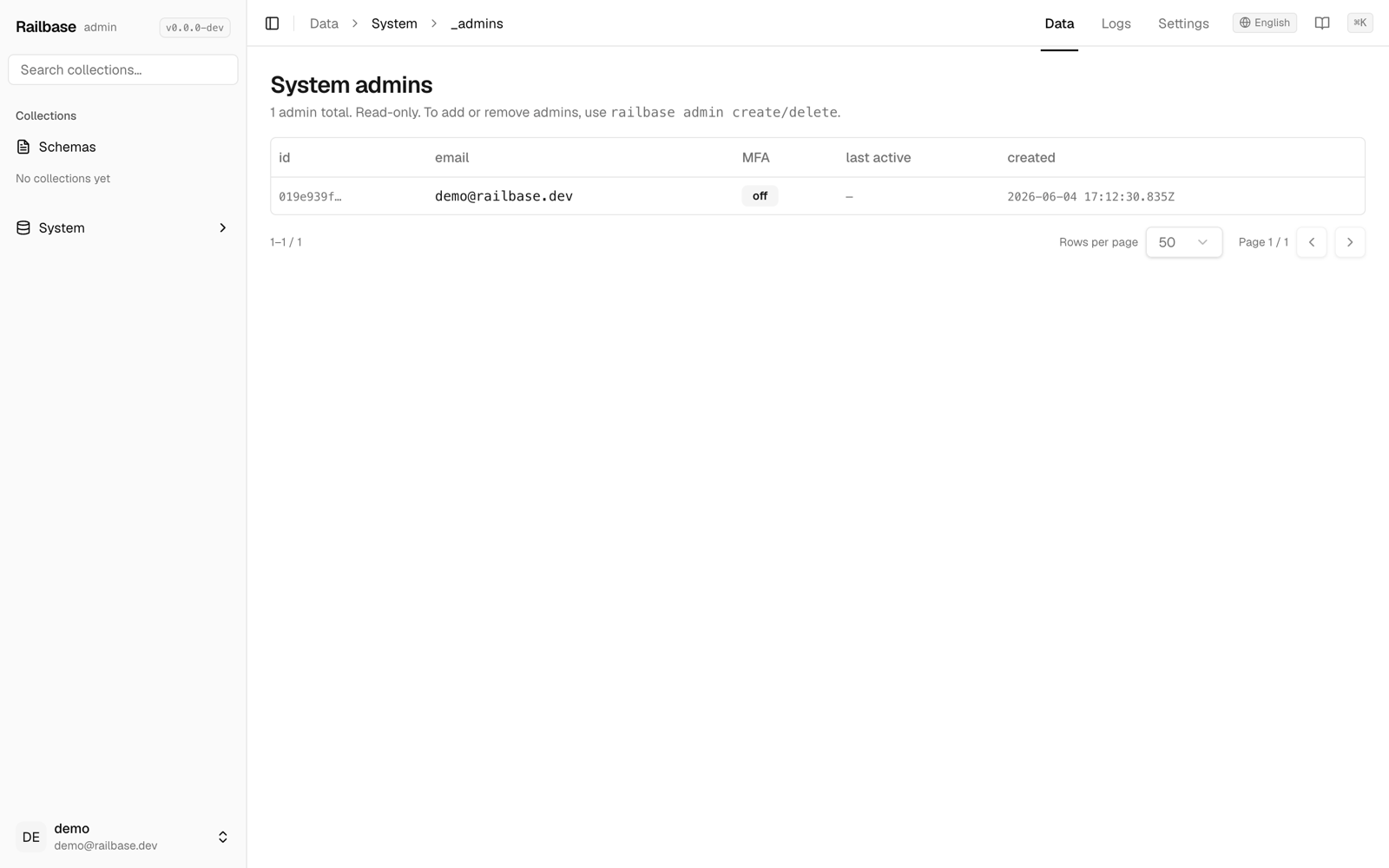
The Data sidebar has a System group exposing the internal collections —
_users, _admins, _sessions, _api_tokens, _jobs — so you can inspect
sessions, jobs, and tokens directly when debugging.