
Tasks, approvals & documents
Configure company authority, route work to people or positions, preserve document evidence, and monitor the complete workflow.
Updated
Railbase core provides one workflow foundation for core features and installed modules: organisation supplies responsibility, RBAC authorizes actions, Tasks routes work, delegation of authority (DoA) selects approvers, Documents keeps evidence, and the audit timeline records the result.
Configure the workflow foundation
Use this order for each company:
- Build units, positions, and current holders under Companies → Organisation.
- Add app users to the company and grant the minimum RBAC roles under Access.
- Create committees or boards under Companies → Collegial bodies when a group, rather than one user or position, must decide.
- Create company-specific DoA matrices under Companies → Authority.
- Test with a non-admin app user and verify the resulting audit events.
Do not use a platform-wide administrator role to solve a company workflow problem. Platform roles operate the deployment; company roles and DoA govern business activity.
Configure delegation of authority
An authority matrix answers: for this company and action, who must approve, in what order, and under what conditions?
Define:
- the company and stable action key;
- optional organisation unit and amount/currency conditions;
- one or more approval levels;
- whether each level requires any or all approvers;
- approvers by user, position, or collegial body;
- escalation behaviour and any time limits your process requires.
Draft a matrix, use the preview to confirm why it matches a sample request, then approve it. Revoke an obsolete matrix rather than silently changing the meaning of completed decisions.
Use a company-specific matrix for normal operations. A site-level fallback is an optional policy default for companies with no matching matrix; it is not a user role and does not merge company data or permissions.
Delegation
Record a temporary delegation with delegate, scope, start, end, and reason. Delegation changes who may act during the interval; it does not rewrite the position holder, role assignment, or original authority matrix. Review and expire delegations promptly.
Employee task inbox
Employees open Tasks on the site. The badge shows open work. Tabs separate:
- Mine — tasks currently assigned to the user or one of their positions;
- Approvals — DoA decisions waiting for them;
- Watching — tasks they follow;
- Created — work they initiated;
- Overdue — open work past its due date.
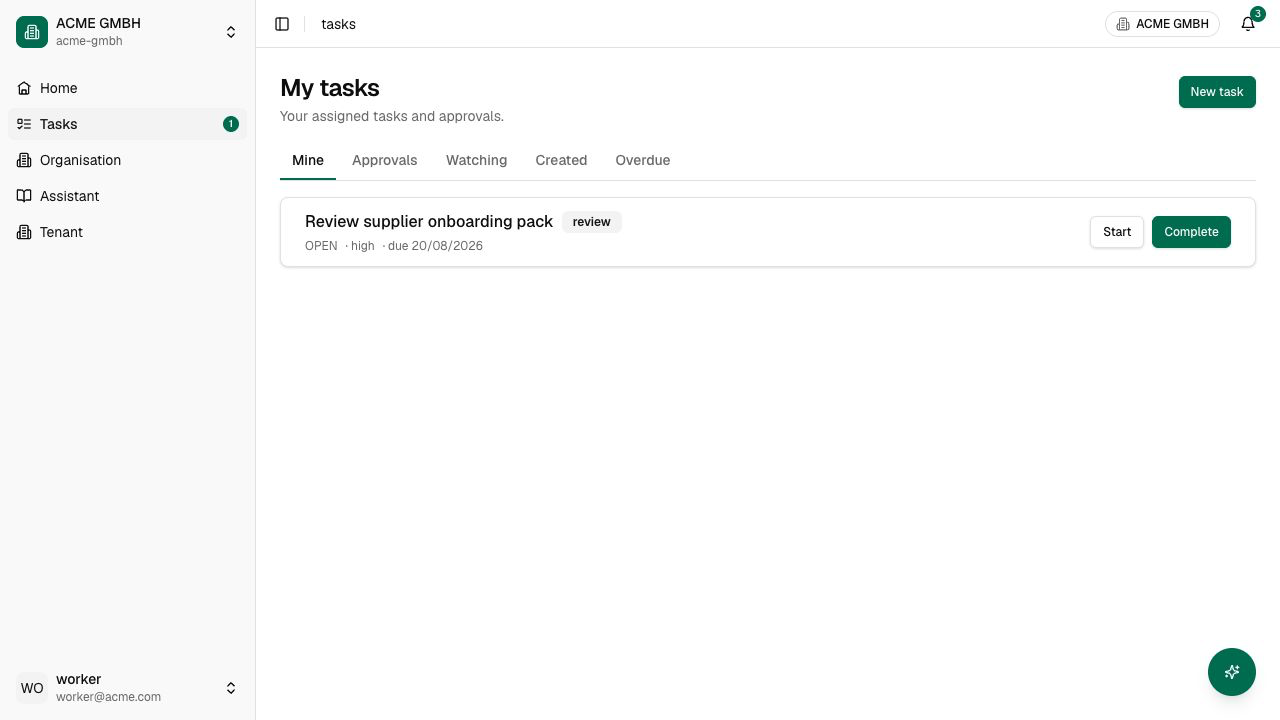
If the user's role permits manual creation, choose New task, enter title, description, priority and due date, and assign a user or stable position. A position assignment follows the current holder and can be claimed according to the task policy.
For ordinary work, use Start, add comments or evidence, and Complete. For approval work, open the linked workflow, inspect the request and sealed evidence, then Approve or Reject with the required memo. Delegate only when company policy allows it. Never approve from a notification summary alone.
Operator monitoring
Open Companies → Tasks in the admin. The Tasks tab filters by status, type, and company and opens assignment, source, workflow, and comment details. The Workflows tab monitors approval state and decision history.
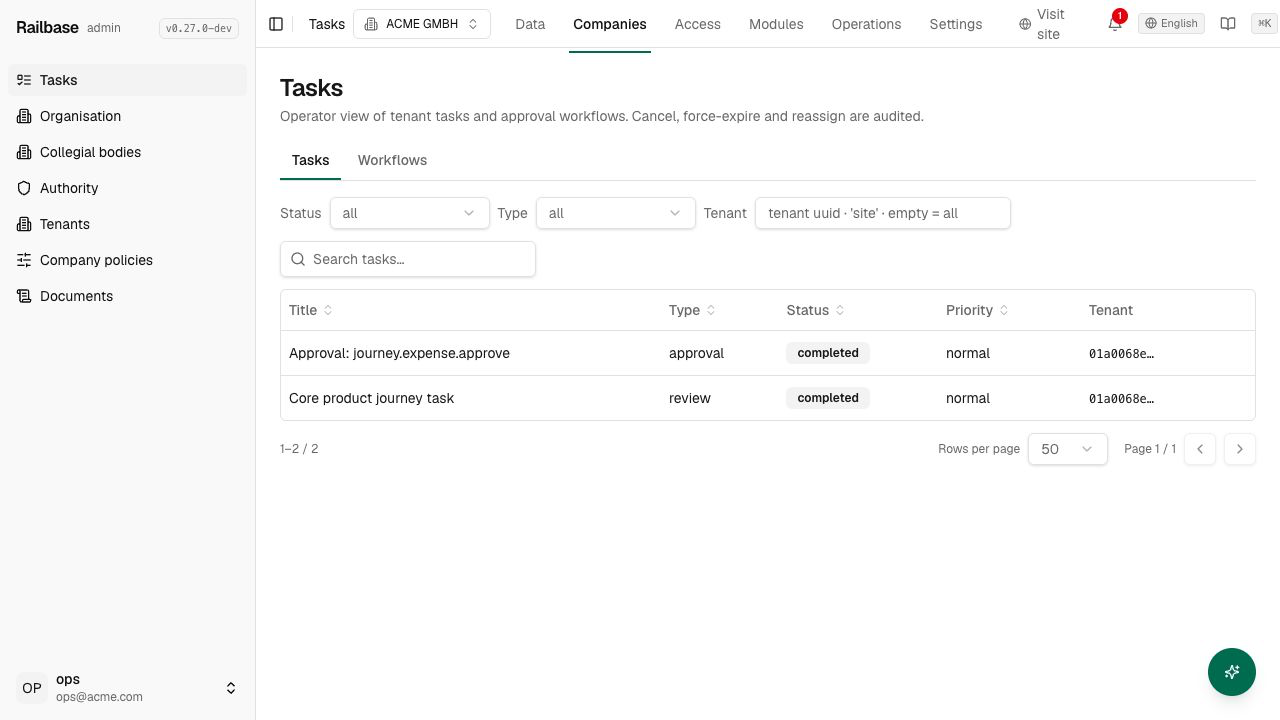
Operator actions such as reassign, cancel, or force-expire are exceptional. Provide a reason, use least privilege, and review the corresponding audit event. An operator view is not a substitute for the employee completing or deciding the task.
Documents as workflow evidence
Companies → Documents is the core, versioned document repository. A document is bound to its owning business object, such as a task, contract, or plugin record. This lets Railbase preserve meaning instead of keeping an unrelated file pile.
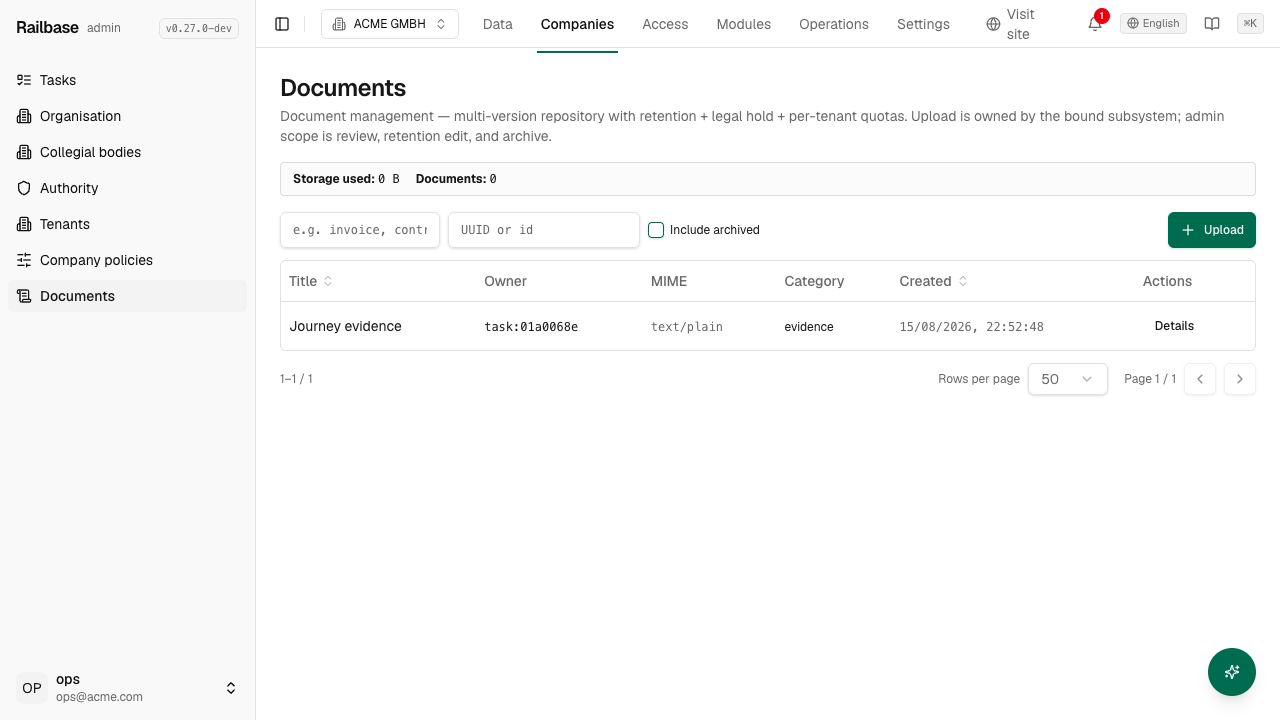
From Documents you can:
- upload a file with owner type, owner id, title, category, and comment;
- filter by owner and include archived records;
- preview or download supported versions;
- inspect version history, provenance, seals, and access events;
- edit title, category, retention date, and legal-hold state;
- archive and restore when policy permits.
Upload from the owning task or module whenever that surface is available; it supplies the correct owner automatically. Admin upload is for controlled operator use and requires an explicit owner.
Versions, retention, and legal hold
Add a version instead of replacing evidence outside Railbase. Completed approval workflows can seal the exact document version used for the decision. Later versions do not alter that historical evidence.
- Retention until prevents premature disposal under company policy.
- Legal hold blocks archive/disposal while the hold is active.
- Archive removes a document from normal working views without erasing its history; Restore returns it.
Use Operations → Files for storage operations, not as a second document management system. Business documents belong in Documents with an owner and policy metadata.
How plugins participate
Current and future modules use the same company identity, RBAC, Tasks, DoA, Documents, and audit services. A plugin may create a task, request an authority decision, or attach evidence, but the employee sees the work in the same core inbox and the operator sees it in the same monitors. Installing a module does not create a parallel organisation, role universe, phonebook, or document store.
End-to-end acceptance check
Before making a workflow live:
- Sign in as the requester on the site and create the business action.
- Confirm the intended matrix matched and the task reached the correct user, position, or body.
- Open the task as the approver; verify evidence version and company context.
- Approve or reject with a memo.
- Confirm task and workflow terminal states, document seal, notification, and downstream module result.
- In Operations → Audit, filter by correlation/request context and verify create, evidence, decision, and completion events.
- Repeat a denied case to prove RBAC and SoD block an unauthorized path.
Next: Operating from the admin.